Meet Custom Dispositions on Mobile — the fastest way to turn every call into clear next steps. Choose an outcome right from your mobile app, and let it power your workflows, reporting, and follow-ups across iOS and Android. This feature is now live for the software, LeadConnector, and Whitelabelled mobile apps.
What’s New
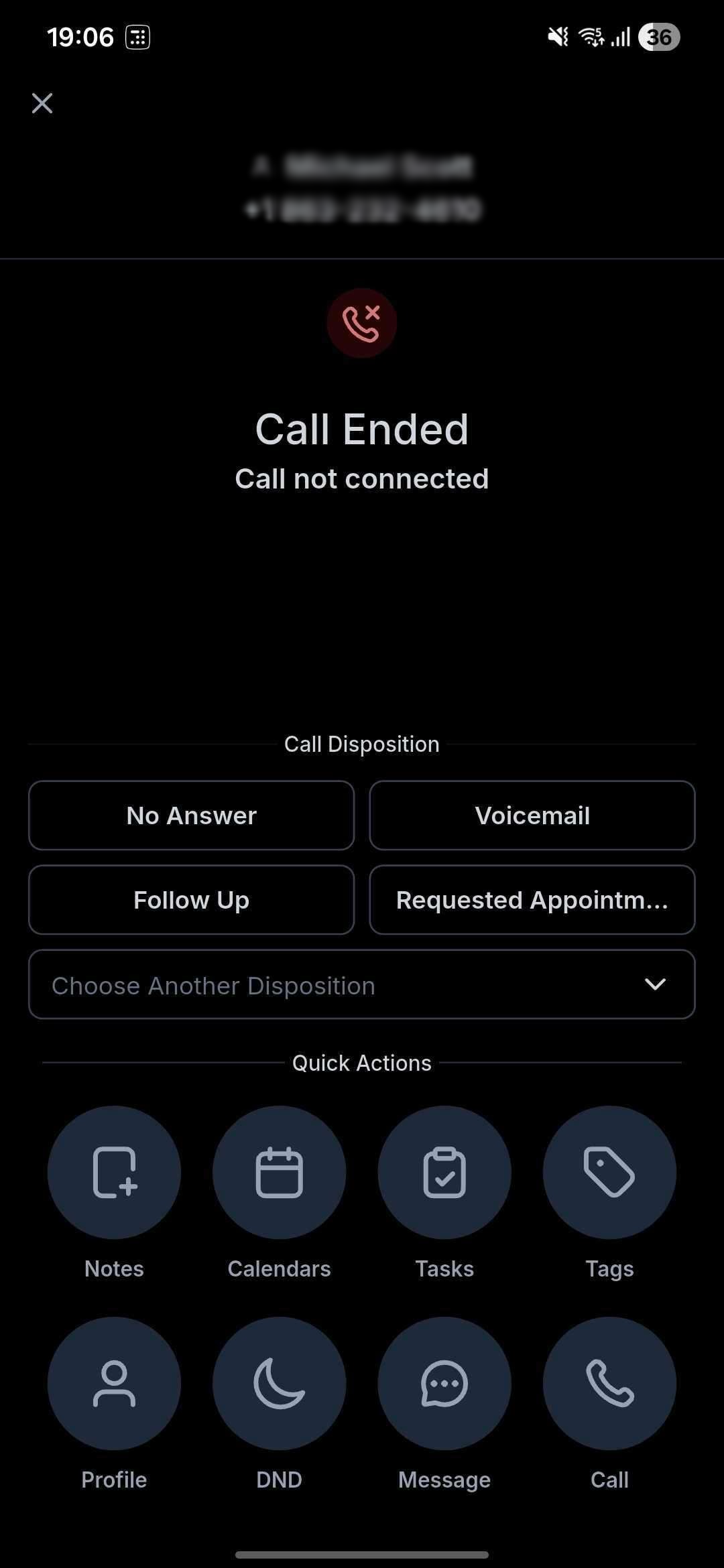
Call End Screen Support: Select a disposition the moment a call ends, or from the post-call view—no extra taps, no desktop needed.
Single Disposition Selection: Capture one definitive outcome per call (e.g., Follow Up), so your data stays clean and your team stays aligned.
Workflow-Ready: Use the Custom Disposition filter in workflows to trigger automations instantly—send follow-ups, create tasks, move deals, and more.
New to Dispositions on Mobile? Big Wins, Fast.
Give your account crystal-clear call outcomes without switching devices:
Action at the edge: Reps log outcomes the second a call ends—no memory gaps, no admin pile-up.
Instant momentum: Every disposition can trigger the next best action (texts, tasks, pipeline moves), keeping deals warm.
Cleaner data, better reporting: Consistent outcomes mean sharper insights and easier coaching.
Already Using Dispositions on Web? Now It’s Seamless on Mobile.
Bring your existing process to the field—no compromises:
True parity: The same standardized outcomes you use on web are now one tap away on mobile.
More automation, less friction: Keep your workflow triggers and reporting intact—even when reps work on the go.
Higher compliance: Single-select outcomes reduce ambiguity and tighten data hygiene across the board.
How to Use This Feature
Make or receive a call in your account mobile app.
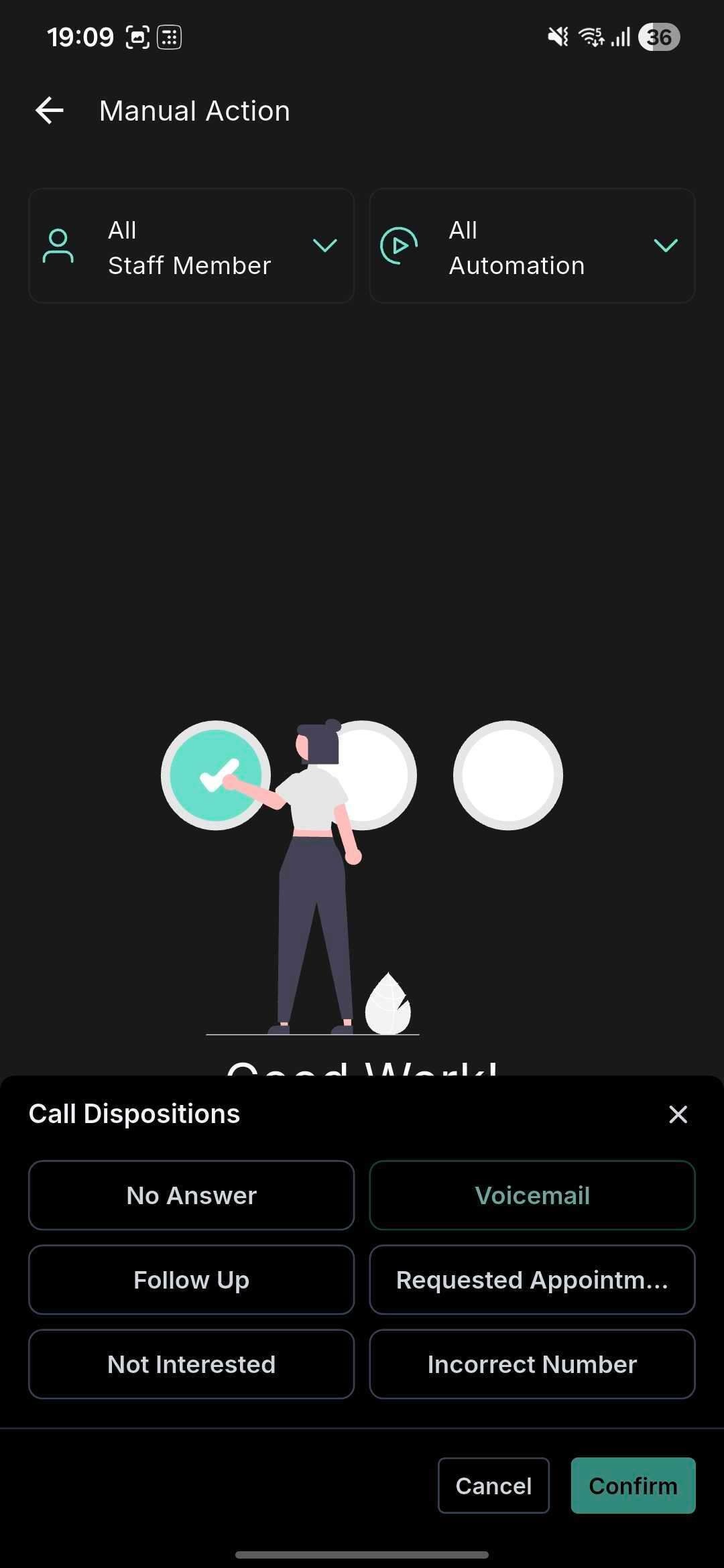
On the call end screen (or in the post-call view), you will see a list of all your custom dispositions.
Choose one outcome (e.g., Follow Up, Qualified, etc.).
If you see a notice about account mismatch, tap “Switch” and change to the call’s account, then select the disposition.
To automate next steps, open Workflows (web) and add the Custom Disposition filter to your triggers or conditions.
Use your reporting views to analyze outcomes (conversion, speed-to-follow-up, pipeline movement) across teams and timeframes.
Mobile-Specific Notes
Account Matching Required: Dispositions appear only when your selected account matches the call’s location. Because the app can receive calls across multiple accounts, cross-account dispositions aren’t supported. If needed, tap “Switch” on the call end screen to move to the correct account and then apply the disposition.
Availability
the software Mobile App v4.5.0 and above
LeadConnector Mobile App v4.5.0 and above
Whitelabelled Mobile Apps (secure your update through the Whitelabel Mobile self-service flow or through your dedicated Account Specialist)
Was this article helpful?
That’s Great!
Thank you for your feedback
Sorry! We couldn't be helpful
Thank you for your feedback
Feedback sent
We appreciate your effort and will try to fix the article